[Update 2012-10-18: Since the shutdown of the touchsmartdevzone.com site on October 15, 2012, I’ve had a request from someone who wanted to download the upgrade tool. So it now has a new, temporary home here on this blog. I’ve published a bit.ly link for it, which is reported as potentially dangerous (http://bit.ly/TS4Upgrade), but the file it points to is the original, digitally signed app. An alternate link is http://www.geektieguy.com/ts4upgrade/TS4Upgrade.exe The sad part is that I won’t be able to keep track of download stats easily anymore. Oh well. I know the tool has been relatively successful with around 14000 downloads as of July 6, 2012.]
After much spare-time work, I’ve finally gotten approval to publish a tool that helps you install the TouchSmart 4 software on previous generation hardware. It’s currently available through the TouchSmartDevZone.com site. You can find it here in the downloads section. HP had previously published a similar tool, but pulled it from their website after about a month or so.
This tool is unsupported by HP, so use it at your own risk. It did receive some testing, both by HP and a few customers, so I have reason to believe it will work properly for you. Also, in order to use it, you have to accept the license agreement that is displayed when you first run it.
Why write a blog post about it? I want to give a little detail on what it does in case things don’t go as smoothly as they’re supposed to.
The tool basically does these things in order:
- Check that all prerequisites for TouchSmart 4 are fulfilled, including hardware checks
- Installs the Microsoft .NET Framework 3.5 SP1 if needed (a few hosted apps need this)
- Downloads all officially published softpaqs from the HP support website
- Installs the Microsoft .NET Framework 4.0 if needed (the TouchSmart “shell†needs this)
- Installs all downloaded HP TouchSmart 4.0 software components
Should Windows indicate that a reboot is needed “right off the batâ€, clicking a corresponding button in the tool will make sure that the tool is automatically restarted after the reboot. The tool will also automatically restart after potentially installing .NET 3.5 SP1 and .NET 4.0. No reboot is necessary after the remainder of the software has finished installing. If User Account Control is enabled on your system, the tool will prompt for permission to run each time it is launched.
Here is a sequence of screenshots that show the tool in action (captions beneath pictures):
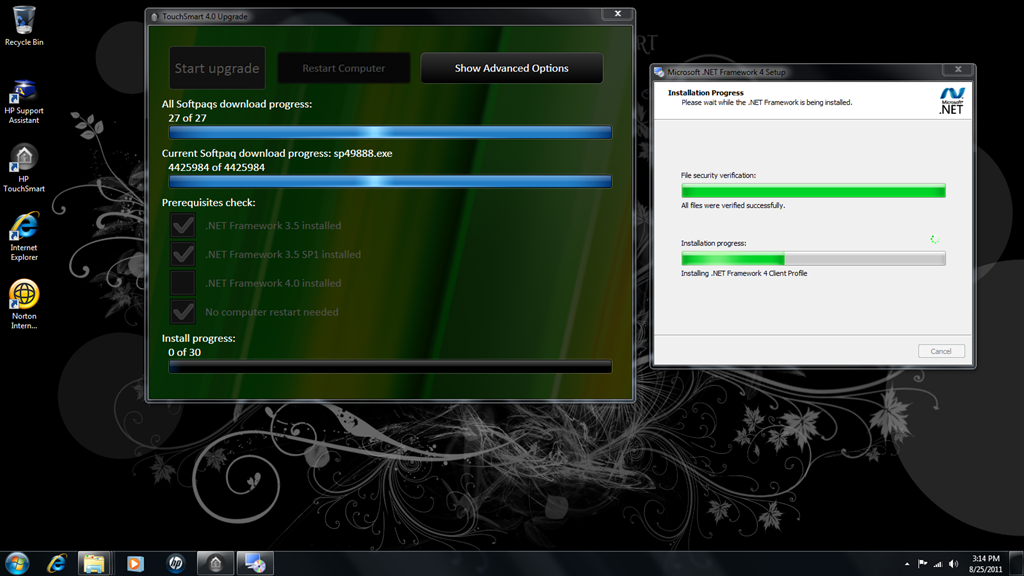
Installing .NET 4.0
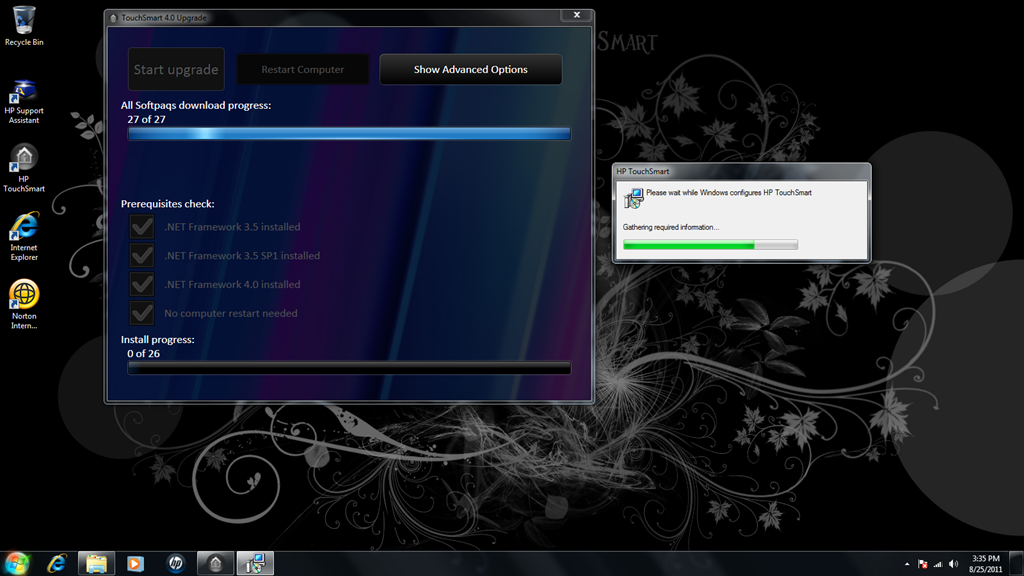
Installing the TouchSmart 4.0 “shellâ€
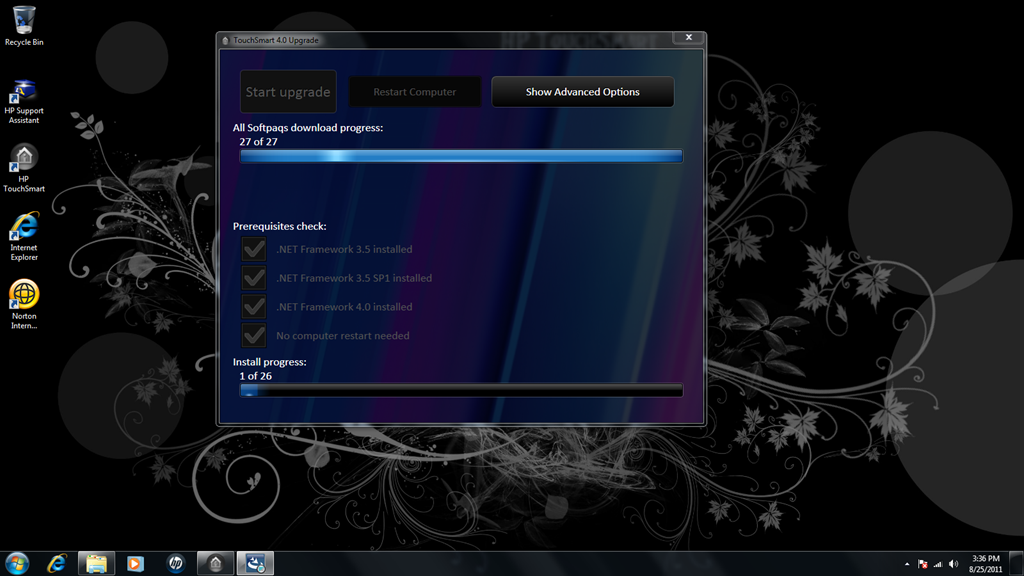
Preparing to install other softpaqs
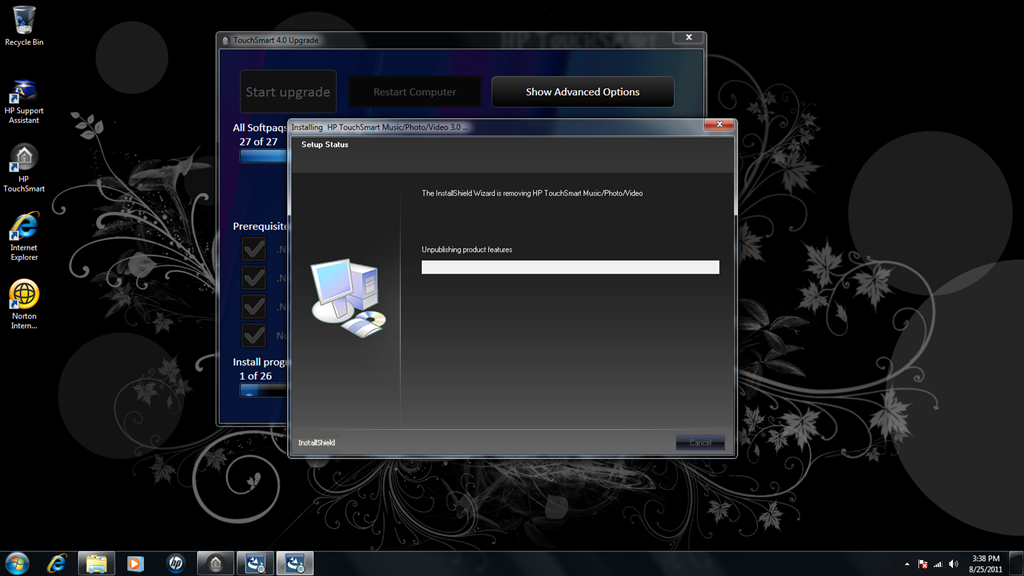
Removing older versions of Music/Photo/Video apps
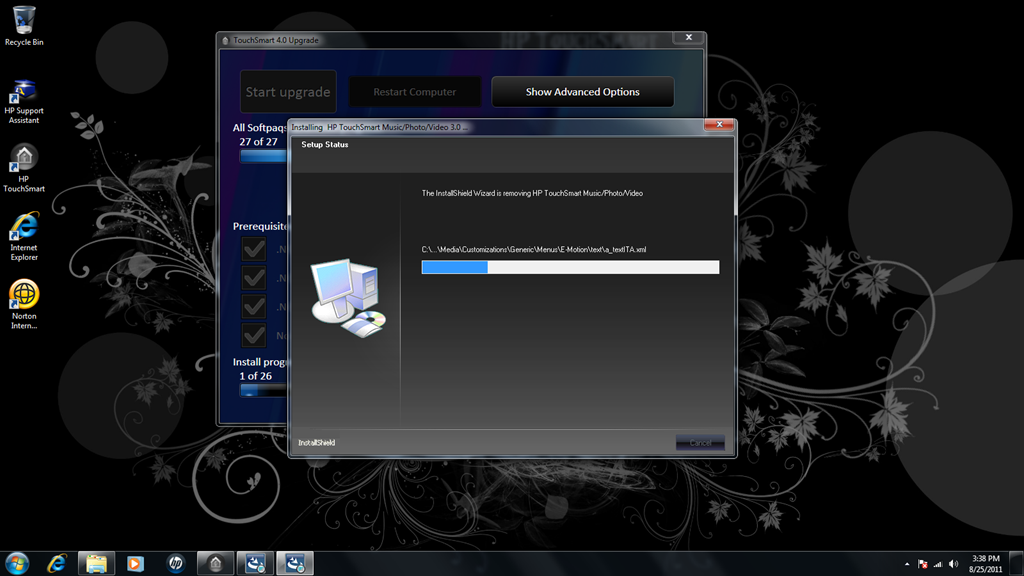
Installing softpaqs
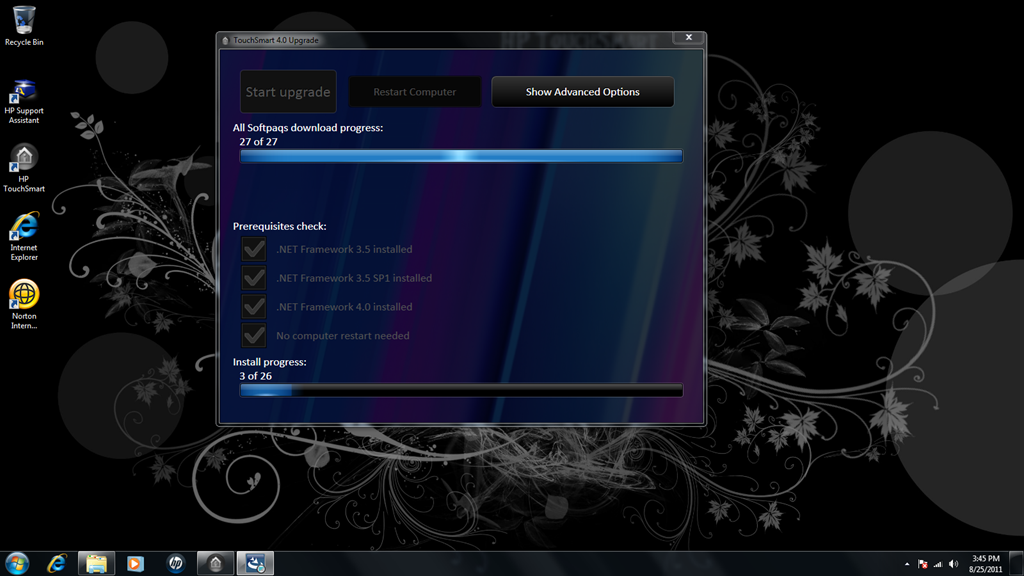
Install progress after third softpaq install
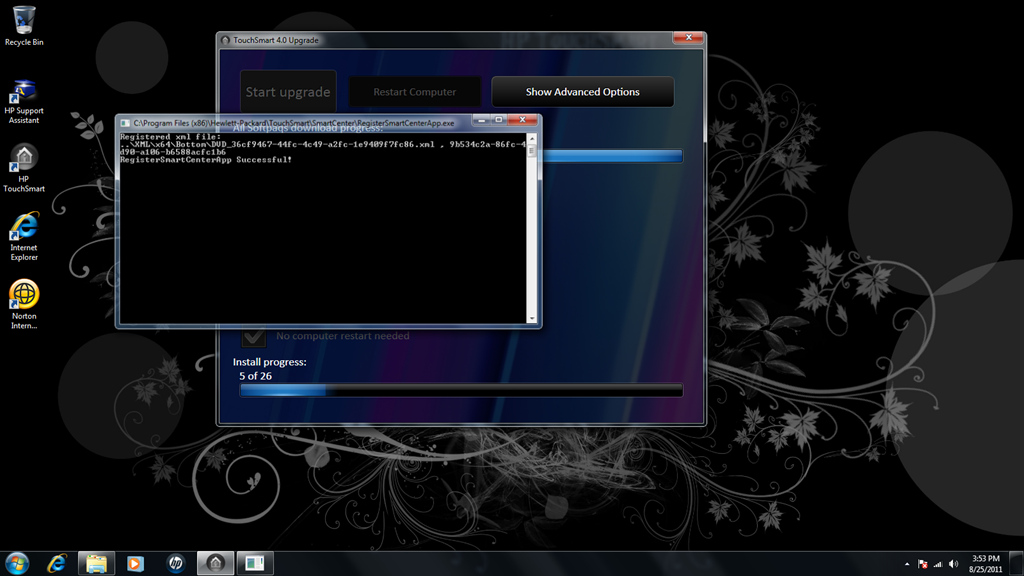
Hosted app registration happening during install
Once all software is installed, the tool gives you an opportunity to burn the downloaded file to a DVD, along with the upgrade tool itself. This will speed up install on other systems a little, since installing from DVD may be faster than downloading from the Internet. Most people probably don’t need this DVD, but it may come in handy, should you want to rerun the upgrade in the future (after a system restore, for example.)
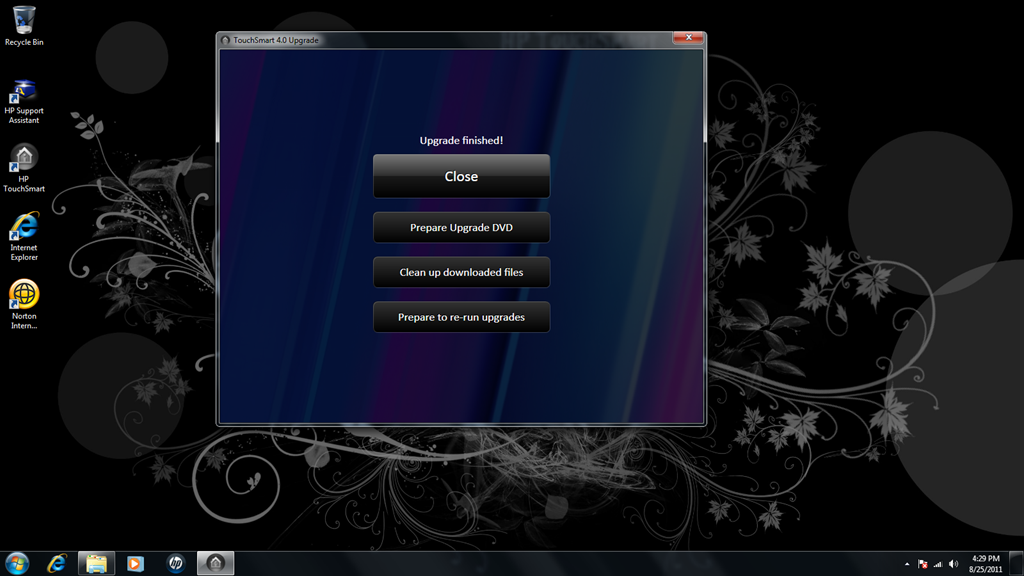
All software finished installing
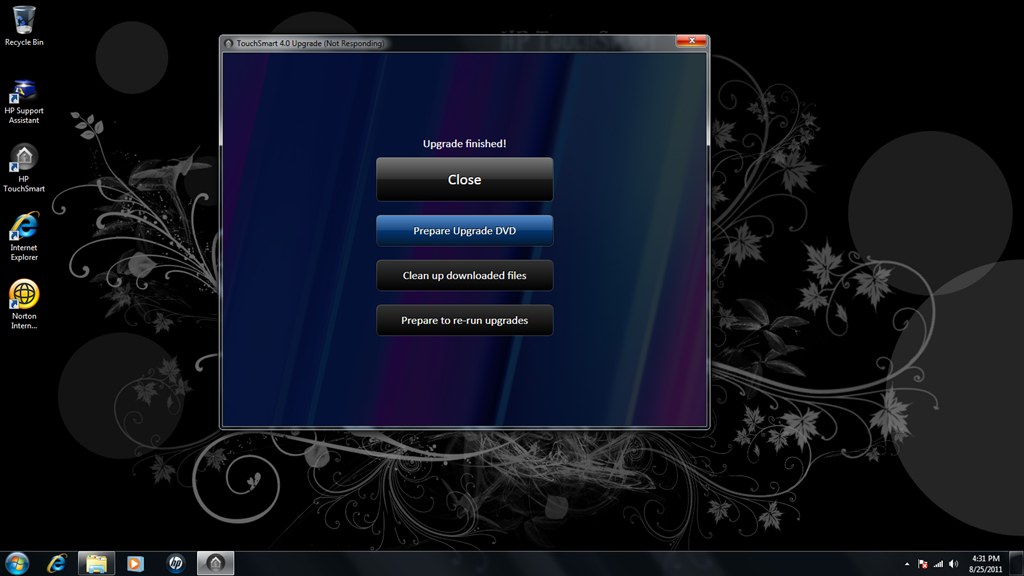
After clicking the button to prepare a DVD
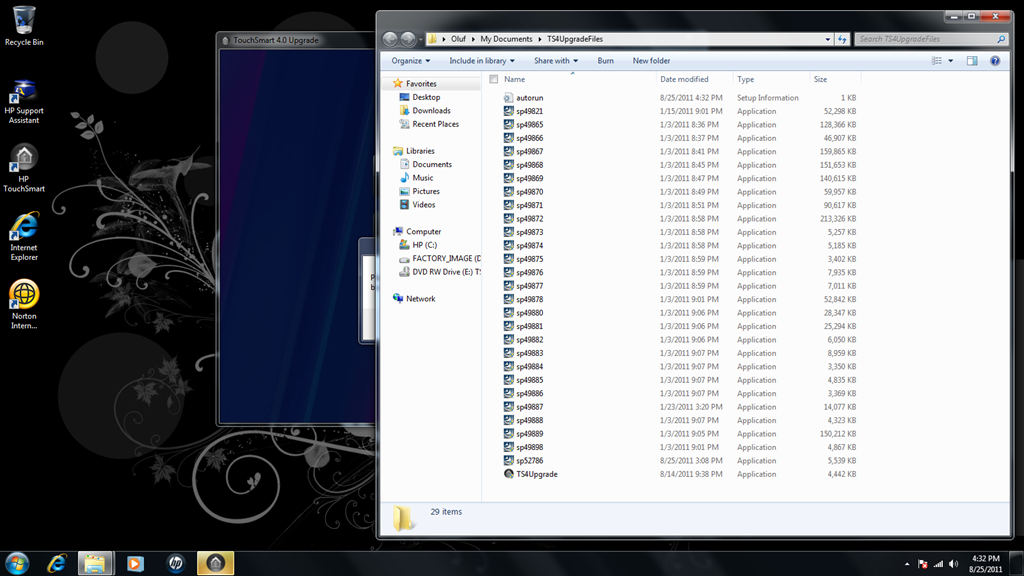
Windows Explorer window opened with files ready to burn to DVD
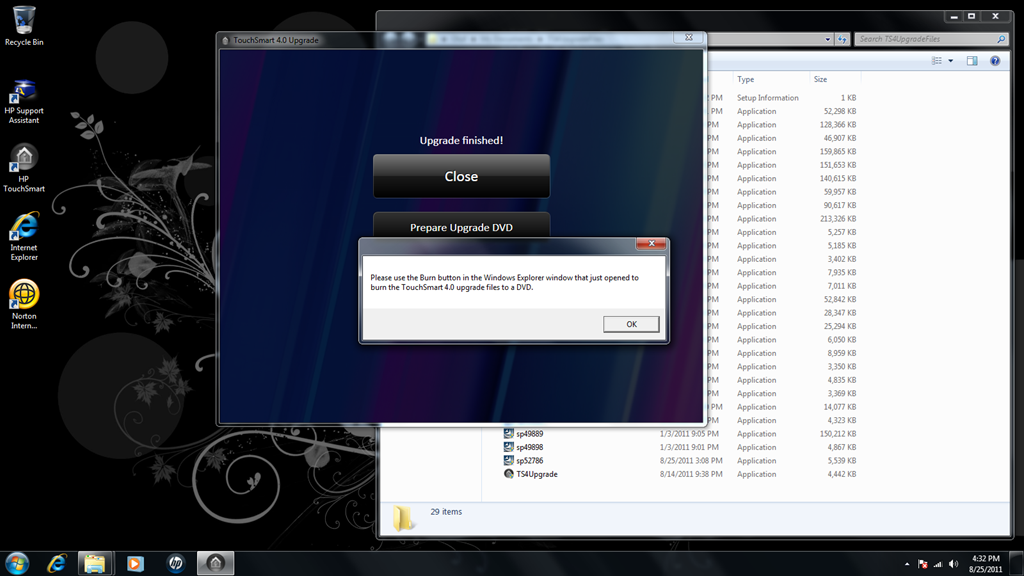
Notification that files are ready to be burned to DVD using the Windows Explorer window
The only thing I’ve seen go somewhat awry from time to time is that the download of a softpaq may get to a 100%, seemingly, but not finish. I think this might be caused by the server(s) that hosts the downloads, but I’m not sure. Since the tool is written to perform its operations to full completion at each step before going to the next, it may get stuck and not allow you to close it in this situation. Should that happen, you can hold down the Ctrl key on the keyboard while clicking the red button with the little “x†in the upper right corner to close the tool. This will terminate the incomplete download and delete the partially downloaded file. When you run the tool again, the downloads will resume with the not completed download first, and hopefully complete the downloads this time around.
Depending on your Internet connection speed, downloading an installing everything can take several hours, so it’s best to do this when you have that kind of time available.
I hope this tool is useful for some of you.
Vincent
GeekTieGuy
Tom
GeekTieGuy
Tom
GeekTieGuy
Eric
Kevin
GeekTieGuy
Jordan
GeekTieGuy
Darshtang
GeekTieGuy
Chad
GeekTieGuy
Chad
GeekTieGuy
Chad
Richard
GeekTieGuy
GeekTieGuy
John Tatar
GeekTieGuy
Jan
GeekTieGuy
Erico
Tatooineghost
GeekTieGuy
Carlos
GeekTieGuy
Tatooineghost
GeekTieGuy
Tatooineghost
Joe
Larry
GeekTieGuy
John
Trofeo
GeekTieGuy
Tony
GeekTieGuy