In which I learn that even though the SMART status and drive self-tests report “No problems found”, you can’t trust them all the time.
To make a long story short: Even though I’ve mentioned in the past that it’s a good idea to monitor your hard drive’s SMART status to detect potentially impending doom, sometimes that’s not enough (in my last post on the topic, I replaced a drive based on SMART data.) You also need to look into the Windows Event Log to see if Windows silently is logging read errors (but not telling you in so many words, like “Hey, I can’t read your hard drive. Get a new one before this one goes all disc grinder on you!”)
My new tale involves a drive that didn’t show any signs of bad SMART data, didn’t report any trouble when analyzed with the manufacturer’s tools, but caused trouble anyway. Over the course of several months my main workhorse computer developed an annoying habit of booting slowly, sometimes to the point of freezing up entirely before getting all the little background programs loaded that I’ve amassed over about three years without reinstalling the OS.
I suspected the motherboard to be faulty at first, so I switched that out, with the result that I had to re-activate XP, which was annoying. I thought that had worked, but no, things kept being bad. Then I figured that I’d have to somehow test whether the hard drive controller on the mobo had gone bonkers. Well, since I have two other drives on the same chip, that didn’t seem possible.
Next, I thought “How about doing a benchmark on the hard drives?” So I found this pretty cool free (for personal use) benchmarking program called HD Tune (which, incidentally, also reports SMART data), and guess what – it would sometimes abort the test with a “read error” message. And sometimes the benchmark graphic would look like this:
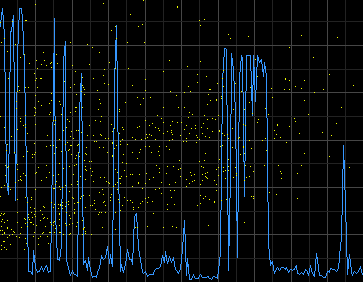
Believe me, you don’t want it to look like that, blue and yellow all over the place like a shiner! What you want is something more like this:
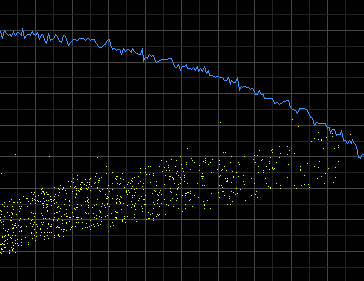
A nice and steady drop-off in speed (blue) and increase in access time (yellow).
Anyway, the read error prompted me to check the Windows Event Log, and sure enough there were disk read errors quietly reported regularly over the past several months. So I decided it was time for another hard drive replacement. What I learned from that is “meat” enough for another post. Good thing I keep all my data on a physically separate drive (and online at Mozy).
The moral of the story is: “Check your hard drive’s SMART status, but be suspicious anyway!”
Max Johnson
Ran
GeekTieGuy
Pingback: GeekTieGuy » Listen to your hard drive’s S.M.A.R.T. status – part 3